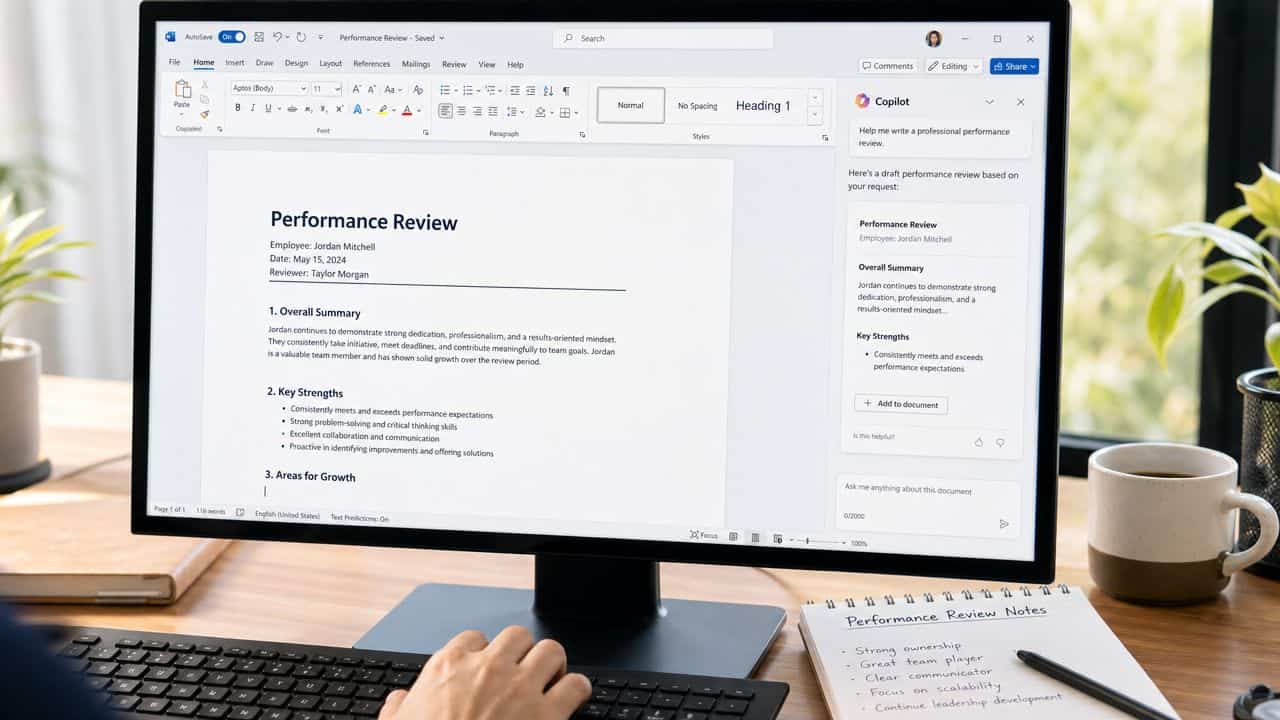
Eight performance reviews due by mid-December. You open the first one. Blank document, blinking cursor, and the weight of it hits you.
You know what happened this year. You’ve been in 1-on-1s with this person, watched projects ship and stall, given feedback along the way. The hard part isn’t evaluating performance. The hard part is taking everything scattered across Teams transcripts, Outlook threads, OneNote pages, and project docs and turning it into a coherent review. That work takes 2-4 hours per review. Multiply by your team size and you’ve lost a full week.
Microsoft Copilot for performance reviews solves a different problem than ChatGPT or Claude. Those tools write better prose, but they require you to copy sensitive employee information into an external system. Copilot stays inside your Microsoft 365 tenant, where the review data already lives. It can pull from Teams transcripts, search Outlook for relevant threads, and draft inside Word using your actual source notes. The prose is competent rather than exceptional, but the data boundary is real and the workflow stays in one place.
This guide walks through how to actually use Copilot for reviews. You’ll get the 4-step workflow, 10 prompts you can paste in immediately, and practical guidance on where Copilot helps and where it falls short. Copilot doesn’t replace your management judgment. It can’t evaluate performance, decide ratings, or know what makes one quarter different from another for a specific person. What it does is help you organize evidence that’s already inside Microsoft 365 and produce a polished first draft you can refine into something that sounds like you.
Already using a different AI tool? Compare this to ChatGPT for performance reviews or Claude AI for performance reviews. Just looking for prompts? Here are 5 ChatGPT Prompts for Performance Reviews.
Key Takeaways
- Copilot’s real advantage isn’t writing quality, it’s that sensitive review data stays inside your Microsoft 365 tenant
- The paid Microsoft 365 Copilot add-on is required for the in-Word, in-Outlook, in-Teams workflow described here
- Build a private evidence file in OneNote or Word before prompting so Copilot has structured source material to work from
- Copilot is more conservative than ChatGPT or Claude, which softens hard feedback unless you push back on the draft
- Always do a final editing pass to add personal context and rewrite in your own voice
Table of Contents
Why Using Microsoft Copilot for Performance Reviews Works
Microsoft Copilot has carved out a specific niche for managers who work inside the Microsoft 365 environment and need to handle sensitive employee information without copying it into external AI tools. For broader Copilot use cases beyond reviews, see our Microsoft Copilot for Managers review.
Keeps Sensitive Data Inside Microsoft 365
Performance reviews contain material that should not leave your company’s systems. Skip-level feedback, compensation context, development gaps, references to leave or workload, excerpts from internal threads. None of this belongs in a consumer AI chat window.
Copilot’s product advantage here isn’t the writing. It’s that the work stays inside your Microsoft 365 tenant. Microsoft itself has formalized this use case. In a Microsoft 365 Insider guide on year-end review prep with Copilot, the company describes Copilot as a way to assemble polished reviews from scattered notes while pulling context from OneNote pages, status reports, and mail. ChatGPT and Claude both require you to paste source material into a separate system. Copilot doesn’t.
Works With Your Existing Source Material
Teams transcripts, Outlook threads, status reports in Word, deck comments, OneNote pages. The raw material for a thoughtful review already lives in Microsoft 365. Copilot can surface that material in place rather than making you copy it out to a different tool first. For managers running their week in Teams and Outlook, this changes the math.
Cuts Writing Time
Writing reviews from scratch takes 2-4 hours each. Copilot handles the structural work, organizing source notes into review sections and producing a draft you can edit. Most managers cut per-review time from 3-4 hours to 90 minutes or less. That savings depends on having decent source material. Garbage in, garbage out.
Reduces Recency Bias
Writing reviews from memory makes the last quarter loom too large. The Q4 launch crowds out the Q2 grind. Copilot, working from actual source material across the full review period, produces a more balanced picture than memory does. This only works if your source material covers the full year.
The Critical Caveat
Copilot is a writing tool. Full stop. It doesn’t replace your management responsibilities: knowing your employees’ work, making fair assessments, providing specific examples, or having the actual review conversation. If you’re reaching for Copilot because you don’t have enough information about someone’s performance, that’s a management problem. No AI fixes insufficient attention or poor documentation.
Use Copilot to write better and faster. Not to manage less attentively.

Before You Start: What Copilot Needs
Copilot works with what you give it. The difference is that what you give it can come from inside your existing Microsoft 365 environment, not pasted from external sources. Before opening the Copilot pane, invest 20-30 minutes assembling a private evidence file in Word or OneNote. That document becomes the working source for everything Copilot drafts.
Build a Review Evidence File
Create one private document per employee in Word or OneNote. Word works better if the final review will also live in Word, since Copilot can ground its responses in documents inside the same Microsoft 365 environment. The evidence file should contain:
- Project highlights: Major launches, handoffs, recoveries, escalations, cross-functional contributions
- Feedback excerpts: Short notes pulled from Outlook threads, Teams chats, and meeting follow-ups
- Behavior patterns: Decision-making, ownership, responsiveness, mentoring, conflict handling
- Development themes: Recurring friction points, not one-off annoyances
The point isn’t to paste everything into Copilot. The point is to give Copilot a curated record that reflects what actually happened.
Pull From Teams and Outlook
Teams transcripts capture how the employee explains tradeoffs, handles pressure, and contributes in group settings. Outlook threads show stakeholder responses, follow-up quality, and whether the person closes loops or creates confusion. Search Teams for recurring 1-on-1s, project reviews, retros, and escalation meetings. Search Outlook for praise threads, customer feedback, escalations, and moments where the employee resolved something messy. Drop the findings into the evidence file under simple headings.
Some of the story will sit in Slack, Notion, Asana, Linear, or other tools. Those notes need to be manually copied into the evidence file. Annoying, but still better than scattering review notes across multiple AI tools and tabs.
Gather Specific Examples With Numbers
Generic feedback doesn’t help anyone develop. For every major point, find a specific instance. Not “strong communicator,” but “facilitated the cross-departmental Q2 planning session with 15 stakeholders, resulting in clear decisions and no follow-up confusion.” Include metrics where you have them: revenue impact, time saved, team size managed, efficiency improvements. Copilot can write around abstract claims, but it can’t invent the specifics.
Note Contextual Factors and Use Placeholders
Did this person face unusual obstacles? Did team changes affect their work? Were priorities shifted mid-year? Add these circumstances to the evidence file. They matter for fair, contextual evaluation.
Even though Copilot’s data stays inside your M365 tenant, use placeholders for sensitive material. “Senior analyst” instead of names, “Project X” instead of confidential initiative names, “a peer” or “a stakeholder” instead of specific people in feedback excerpts. Add real names back when you copy the final draft into your official HR system.
The Time Investment
Twenty to thirty minutes of prep feels like a lot, but you’d need to organize this material anyway, either before writing or while staring at a blank page. Doing it upfront makes the actual drafting faster, and Copilot’s quality improves dramatically when it has a structured source document to work from.
The Microsoft Copilot Performance Review Method
Four steps, used in order, get you from evidence file to publishable draft.
Step 1: Build the Review Skeleton in Word
Open Word and create the document structure before activating Copilot. Copilot produces better output when it has defined sections to fill. A standard review skeleton:
- Summary: Overall performance narrative
- Key contributions: Specific examples and outcomes
- Strengths: Repeatable behaviors worth reinforcing
- Development areas: Honest gaps with examples
- Next-period focus: Narrow priorities, not a wish list
Match this to your company’s actual review template. Copilot, when asked to write from nothing, tends to produce generic review language that sounds borrowed from HR software. Defined slots produce better results.
Step 2: Draft One Section at a Time
Move through the skeleton section by section, prompting Copilot with the specific source material from your evidence file. Sample prompt for the Key Contributions section:
Draft the "Key Contributions" section of this performance review using the notes in this document. Include the following:

- Redesigned the customer onboarding workflow, cutting completion time from 6 days to 2 days
- Trained a new team member who is now performing independently
- Earned AWS Solutions Architect certification and applied it to improve infrastructure
- Volunteered to lead the team's knowledge-sharing initiative, which now has 90% participation

Professional tone. Approximately 200 words. Base every point on information in this document. If evidence is thin on any point, say less rather than inventing detail.
The “say less rather than inventing detail” line is important. Without it, Copilot fills gaps with plausible-sounding generic language. Read the output critically. Add context only you would know. Adjust language to match how you actually communicate before moving to the next section.
Step 3: Refine Through Conversation
Copilot improves through iterative dialogue. A few useful follow-up prompts:
Adding detail:
Expand the onboarding redesign paragraph. Include that the project involved stakeholder interviews across four departments, addressed three pain points, and has processed 200+ customers since launch.Adjusting length:
Trim to 125 words while keeping all the key achievements.Shifting emphasis:
Put more weight on the mentorship aspect and less on the certification.This conversational approach produces better results than trying to get a perfect draft from one giant prompt. Copilot struggles with multi-source synthesis when asked to do everything at once.
Step 4: Adjust the Tone
Copilot’s default tone is professional and measured, sometimes too measured. The draft often comes back softer than intended on hard feedback. Quick tone fixes:
More direct:
Remove hedging language. Make this more direct and specific while staying constructive.More development-focused:
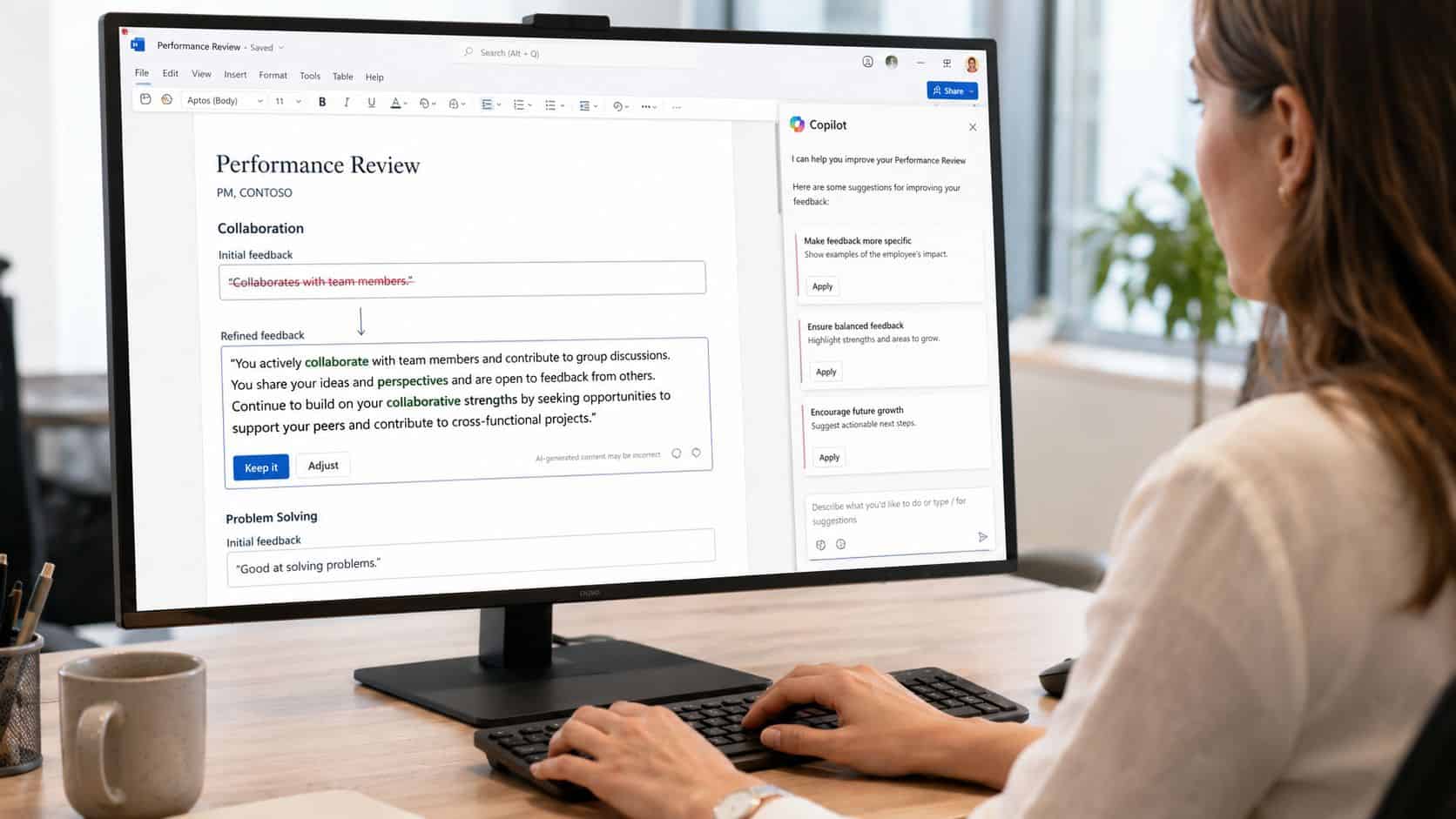
Reframe as constructive feedback focused on growth opportunities rather than shortcomings. Keep it honest about the challenges.A practical example. Copilot’s initial draft: “Needs improvement in meeting deadlines consistently.” After requesting constructive reframing: “Building stronger project timeline management will help this manager juggle multiple priorities. We saw a few instances where deliverables came in close to deadlines, and developing better estimation and buffer strategies will support success as responsibilities expand.” Same feedback, different impact.
The Editing Reality: Copilot Doesn’t Write Like You
Copilot writes in polished, professional business language. It’s grammatically correct, well-structured, and often sounds corporate. Slightly formal. Not quite human. Your direct reports know how you communicate. If your performance review reads like it came from an HR consultant, the disconnect will be obvious.
Copilot leans more conservative than ChatGPT or Claude. Where ChatGPT might overwrite with enthusiasm and Claude might polish smoother than your voice, Copilot defaults to safe and measured. That’s useful for performance reviews where over-personal phrasing creates legal risk, but it means the first draft often lacks force where you need force.
Copilot’s version: “The employee has demonstrated consistent capabilities in cross-functional collaboration, regularly facilitating productive discourse among diverse stakeholder constituencies.”
Your version: “Sarah’s become the person everyone wants running cross-functional projects. She’s good at getting different teams aligned and keeping discussions focused, even when people have conflicting priorities.”
Same information. One sounds like a person, the other sounds like a corporate memo.
Read for Voice
Accuracy is the easy part of editing. The harder pass is reading for voice. On every paragraph, ask: would I actually say this out loud, would this person recognize my voice, are there phrases I’d never use, what’s missing that only I would know? The last question matters most. Copilot assembles what you gave it, but it can’t add the manager-specific context that makes a review feel personal.
Cut the Corporate Hedging
Copilot’s safe language is one of its predictable weaknesses. Watch for and rewrite:
- “Seems to have demonstrated” when the evidence supports “demonstrated”
- “Generally performed well” when you can name where and how
- “Had some opportunities to improve” when the issue is a recurring pattern
- “Was involved in” when the person led, owned, or missed something
Hedging changes how fair the review feels. Over-softened criticism confuses employees. Over-puffed praise erodes trust just as fast.
Check for Synthesis Errors
Copilot doesn’t fabricate dramatic fictions in reviews. The more common problem is subtle distortion. It can blend two similar projects together, flatten a sequence of events, or give too much weight to a source where the wording was stronger than the actual significance. Microsoft’s own guidance on evaluating Copilot for HR-adjacent workflows recommends treating output as something to verify, not assume. A practical editing pass: did Copilot merge different events, does every claim tie back to a real example, would this wording hold up in a live conversation, does the draft overweight recent events or one noisy stakeholder?
Use Copilot to get past the blank page and build solid structure. Then rewrite in your own voice. Plan to spend 30-45 minutes editing each draft.
10 Copy-Paste Prompts for Common Review Sections
Ten prompts you can paste directly into Copilot inside Word. Each assumes you have your evidence file open in the same Microsoft 365 environment. Replace bracketed placeholders with your actual details.
Prompt #1: Overall Performance Summary
Draft an overall performance summary for a [job title] using the notes in this document. During this review period:

- Major accomplishments: [X, Y, Z]
- Primary strengths: [list 2-3]
- Development focus: [specific area]
- Performance rating: [exceeds/meets/needs improvement]

Professional and balanced tone. 200-250 words. Base every point on information in this document. If evidence is thin, say less rather than inventing detail.
Prompt #2: Technical Skills Assessment
Draft a technical skills assessment for a [job title]. Specific demonstrations from this document:

- [Skill 1]: [concrete example of application]
- [Skill 2]: [concrete example]
- [Skill 3]: [concrete example]

Highlight strengths and identify one skill area where development would accelerate growth. 150 words.
Prompt #3: Collaboration and Teamwork
Draft the collaboration and teamwork section. Based on these examples in this document:

- [Effective collaboration example]
- [Team support example]
- [Cross-functional work or challenge example]

Encouraging tone. Emphasize collaborative strengths and suggest one way to deepen team impact. 150-200 words.
Prompt #4: Communication Skills
Draft an evaluation of communication abilities for a [job title]. Examples from this document:

- Written: [specific instance - emails, documentation, reports]
- Verbal: [specific instance - presentations, meetings]
- Listening and responsiveness: [specific instance]

Supportive tone. 150 words acknowledging strengths and suggesting one development area.
Prompt #5: Leadership and Initiative
Draft the leadership and initiative section. This person is not in a formal leadership role, but has demonstrated leadership through:

- [Initiative example]
- [Influencing outcomes or driving projects example]
- [Developing others example]

Highlight leadership potential and a path for continued growth. 150 words. Avoid generic leadership language.
Prompt #6: Areas for Improvement (Constructive)
Draft constructive feedback on development areas. Focus on:

- [Specific skill or behavior]: [context and example]
- [Additional area]: [context and example]

Frame as growth opportunities. Include my support plan. Forward-looking and supportive tone. 200 words. Be direct about the gaps without softening past the point of usefulness.
Prompt #7: Goal Achievement Analysis
Draft a goal achievement analysis based on the goals in this document. Goals were:

1. [Goal 1]: [Achieved/Partial/Not achieved - specifics]
2. [Goal 2]: [Status and details]
3. [Goal 3]: [Status and details]

Fair assessment in 200 words. Don't inflate partial achievements or dismiss real progress on missed goals.
Prompt #8: Problem-Solving and Critical Thinking
Draft an assessment of problem-solving and critical thinking based on:

- [Problem solved and approach taken]
- [Challenge handled and response]
- [Analytical thinking or decision-making demonstration]

Highlight problem-solving strengths and suggest how this person can take on increasingly complex challenges. 150 words.
Prompt #9: Professional Development and Growth
Draft the professional development section based on this document:

- New skills or certifications: [list]
- Learning initiatives pursued: [examples]
- Growth areas observed: [specific improvements]
- Recommended next focus: [suggestions]

Celebrate growth mindset and provide clear development direction. 150-200 words.
Prompt #10: Goals for Next Review Period
Draft 3-5 goals for the next review period. Consider:

- Role: [job title and core responsibilities]
- Current development areas: [from this document]
- Business priorities: [relevant goals]
- Career interests: [if known]

Specific, measurable goals. Bulleted format with brief explanations of why each goal matters.
If Copilot’s output doesn’t match your needs, ask for adjustment. “Condense to 100 words” or “Expand with more specific examples” works directly. Customize these for each person on your team. Cookie-cutter reviews help no one.
What Copilot Gets Wrong (and How to Fix It)
Six patterns show up repeatedly in Copilot review drafts. Each has a fix.
Problem #1: Over-Conservative Language
Copilot defaults to safe wording, which softens hard feedback past usefulness. You’ll see “could consider,” “may want to explore,” “had some opportunities to develop” when the point deserves directness.
The fix: Build pushback into prompts upfront. “Be direct about the gaps without softening past usefulness.” If output still hedges: “Rewrite this more directly. The point should land clearly.”
Problem #2: Multi-Source Synthesis Struggles
Copilot can flatten complex situations when synthesizing across multiple sources. A year of mixed performance can come back as a smooth narrative that loses the texture that mattered most.
The fix: Break the work into smaller drafting jobs. Don’t ask Copilot to write the entire review from your evidence file in one prompt. Draft section by section. When synthesis problems show up, name them: “This paragraph flattens two different situations. Rewrite to keep them distinct.”
Problem #3: Excessive Formality
Copilot gravitates toward corporate language. “Demonstrated exceptional capabilities in facilitating strategic initiatives” when you would have said “ran the project well.”
The fix: Specify tone explicitly. “Conversational professional tone” or “Write how I would actually speak to this person in a 1-on-1.” If still too formal: “Rewrite without corporate phrasing. This should sound like a person wrote it.”
Problem #4: Over-Comprehensiveness
Ask Copilot about development areas and you may get five detailed growth opportunities. That overwhelms the employee and dilutes which feedback matters most.
The fix: Be explicit about scope. “Identify the single most important development area” or “Limit to two priorities, ranked by impact.”
Problem #5: Generic Language Instead of Specifics
Copilot sometimes defaults to safe generalities. “Consistently demonstrated strong collaboration skills” instead of the specific Q2 planning session that mattered.
The fix: Always include specific examples and numbers in prompts. If output stays generic: “Rewrite using the exact examples and metrics from this document. Generic language is hiding the specific contributions.”
Problem #6: Repetitive Phrasing Across Sections
When drafting a full review section by section, Copilot can recycle the same examples or phrases. The Q3 project shows up in the summary, the strengths section, and the development section, in nearly identical wording.
The fix: Review the complete draft for redundancy. Tell Copilot what to avoid: “Rewrite this section without mentioning the Q3 project. That’s covered in the contributions section.”
Copilot produces structurally sound, professionally written drafts. They’re generic until you add your specific knowledge and authentic voice. Expect to spend real time editing every draft. That’s not Copilot failing. That’s you doing your job as a manager who actually knows this person’s work.
Best Practices for AI-Assisted Reviews
What You Should Do
DO: Verify You Have the Right License. This workflow requires Microsoft 365 Copilot, the paid add-on. The free Copilot Chat experience won’t deliver in-app grounding or document-aware drafting. Check with your IT team before assuming you have the right tier.
DO: Build a Real Evidence File. Copilot’s quality is bounded by your source material. Twenty minutes building a structured evidence file pays off across every section. A well-organized file beats a dumping ground of unfiltered notes.
DO: Draft Section by Section. Copilot handles smaller, focused prompts better than one giant request. Build the skeleton first, then move through each section individually.
DO: Personalize Every Output. Never paste Copilot’s draft directly into the official review. Read every sentence. The editing pass is where the review becomes useful instead of generic.
DO: Use Copilot for Conversation Prep. Once the written review is final, Copilot is genuinely useful for preparing the live conversation. Turn the draft into talking points, anticipate likely questions, rehearse difficult transitions.
DO: Understand Your Organization’s AI Policies. Companies vary on AI use, even for tools that stay inside the corporate tenant. Some require HR or legal sign-off. Check before you commit to the workflow.
What You Should Avoid
DON’T: Assume Tenant Boundary Equals No Risk. Copilot’s data stays inside Microsoft 365, which is a real advantage over ChatGPT or Claude. That doesn’t mean review material is risk-free. Disciplinary documentation, medical context, and compensation discussions still belong in approved HR systems.
DON’T: Let Copilot Make Judgment Calls. Copilot can assemble, rephrase, and organize. It can’t decide whether someone deserves a promotion or whether a missed deadline reflects a pattern. Those decisions stay with you.
DON’T: Skip the Voice Pass. Reviews that go to the employee without a voice pass read like HR software wrote them. Plan for 30-45 minutes of editing per draft.
DON’T: Make All Reviews Sound Alike. When drafting reviews for multiple people, watch for output convergence. Each review should reflect that specific person’s work.
DON’T: Hide Behind AI for Difficult Conversations. Copilot can organize your thinking and find constructive phrasing. It can’t replace your presence in the actual conversation. The hard part is the meeting, not the document.
The Core Principle
Copilot is a writing tool that helps you articulate what you already know about your team. If you’re using Copilot because you don’t have enough information about someone’s performance, the issue is your management approach, not your writing.
Use Copilot to write better and faster. Not to manage less attentively.
Beyond Copilot: Other AI Tools for Reviews
Copilot isn’t your only option. It’s well-suited for managers working inside Microsoft 365 who need to keep sensitive review data inside the corporate tenant. For other situations, other tools fit better.
ChatGPT — Strong drafting quality, fast and conversational, excellent if you’re not in the Microsoft 365 ecosystem or have clearance to use external AI. See ChatGPT for performance reviews for the full workflow.
Claude AI — Particularly good at handling long, complex inputs and producing nuanced, empathetic phrasing. Worth using when reviews involve extensive context or feedback that requires careful tone. See Claude AI for performance reviews.
Grammarly — If you’ve already drafted manually, Grammarly handles tone, clarity, and polish. Premium includes tone detection.
Notion AI — Useful if you keep 1-on-1 notes in Notion. Less powerful for generating full reviews but convenient for summarizing notes.
Copilot vs ChatGPT vs Claude for Reviews
For managers choosing between the three full-featured AI assistants for performance reviews specifically:
Copilot’s edge is operational, not literary. ChatGPT and Claude usually produce sharper prose. But for managers handling sensitive review content inside Microsoft 365, the secure tenant boundary and in-app integration outweigh the writing gap. For broader AI assistant comparisons, see Claude vs Gemini for Managers.
Wrapping Up
Performance reviews are demanding work. Copilot doesn’t change that. It handles the mechanical parts so you can spend your energy on the judgment calls that actually matter.
Copilot’s real value is keeping the work inside Microsoft 365. The data boundary matters when reviews contain sensitive material. The integration with Word, Outlook, and Teams matters when your evidence already lives there. The drafting is good enough to get you past the blank page and into editing, which is where the time savings actually come from.
The hard parts of performance management stay yours. Knowing your team’s work in detail. Making fair assessments. Calibrating tone to land with each person. Having the actual review conversation. Copilot doesn’t help with any of those. It’s a writing tool that makes the documentation faster and more thorough.
Pick a review that involves complex source material. Build the evidence file. Use the 4-step method. Run the prompts. You’ll probably cut your time from 3-4 hours to 90 minutes, with a more comprehensive review at the end. After one review, you’ll have a sense of whether Copilot fits your workflow.
Use Copilot to handle the documentation well. Spend your energy on the management work that only you can do.
Frequently Asked Questions
Is Microsoft Copilot the same as Copilot Chat?
No. Microsoft Copilot for performance reviews refers to Microsoft 365 Copilot, the paid add-on that works inside Word, Outlook, Teams, and other Microsoft 365 apps. Copilot Chat is the free conversational interface that doesn’t have the same in-app grounding or document-aware drafting. The workflow in this guide requires the paid Microsoft 365 Copilot license. If your company only has the free experience, the in-Word drafting and tenant-grounded evidence file approach won’t work the same way. Check with your IT team or M365 admin to confirm which license you have access to.
Is my review data really safe inside Microsoft 365 Copilot?
Yes, in the sense that prompts and outputs stay inside your company’s Microsoft 365 tenant rather than going to a consumer AI service. That’s a meaningful security advantage over ChatGPT or Claude for sensitive content. It’s not unlimited, though. Performance review material that goes beyond performance feedback, like disciplinary documentation, medical context, or compensation details, still belongs in approved HR systems with appropriate access controls. Use Copilot for the writing work, not as a substitute for the secure systems your company already has in place for sensitive personnel records.
Should I use Microsoft Copilot or ChatGPT for performance reviews?
Use Microsoft Copilot if your team lives in Microsoft 365 and your reviews include material that genuinely shouldn’t leave the corporate tenant. The data boundary and in-app integration with Word, Outlook, and Teams outweigh the prose quality gap for most managers in this situation. Use ChatGPT if you have flexibility on tools, your reviews are less sensitive, and you want sharper writing on the first pass. ChatGPT generally produces better prose, but it requires you to copy review material into an external system, which is a real consideration for sensitive content.
How long should I expect editing to take after Copilot drafts my review?
Plan for 30-45 minutes per review on the editing pass. Copilot’s first draft tends to be safe and slightly corporate. The editing work is where you cut the hedging language, add the personal context only you would know, and rewrite the prose to sound like you. That editing pass is what separates a useful review from one that reads like HR software wrote it. The total time investment with Copilot, evidence file plus drafting plus editing, usually comes in around 90 minutes per review compared to 3-4 hours from scratch.