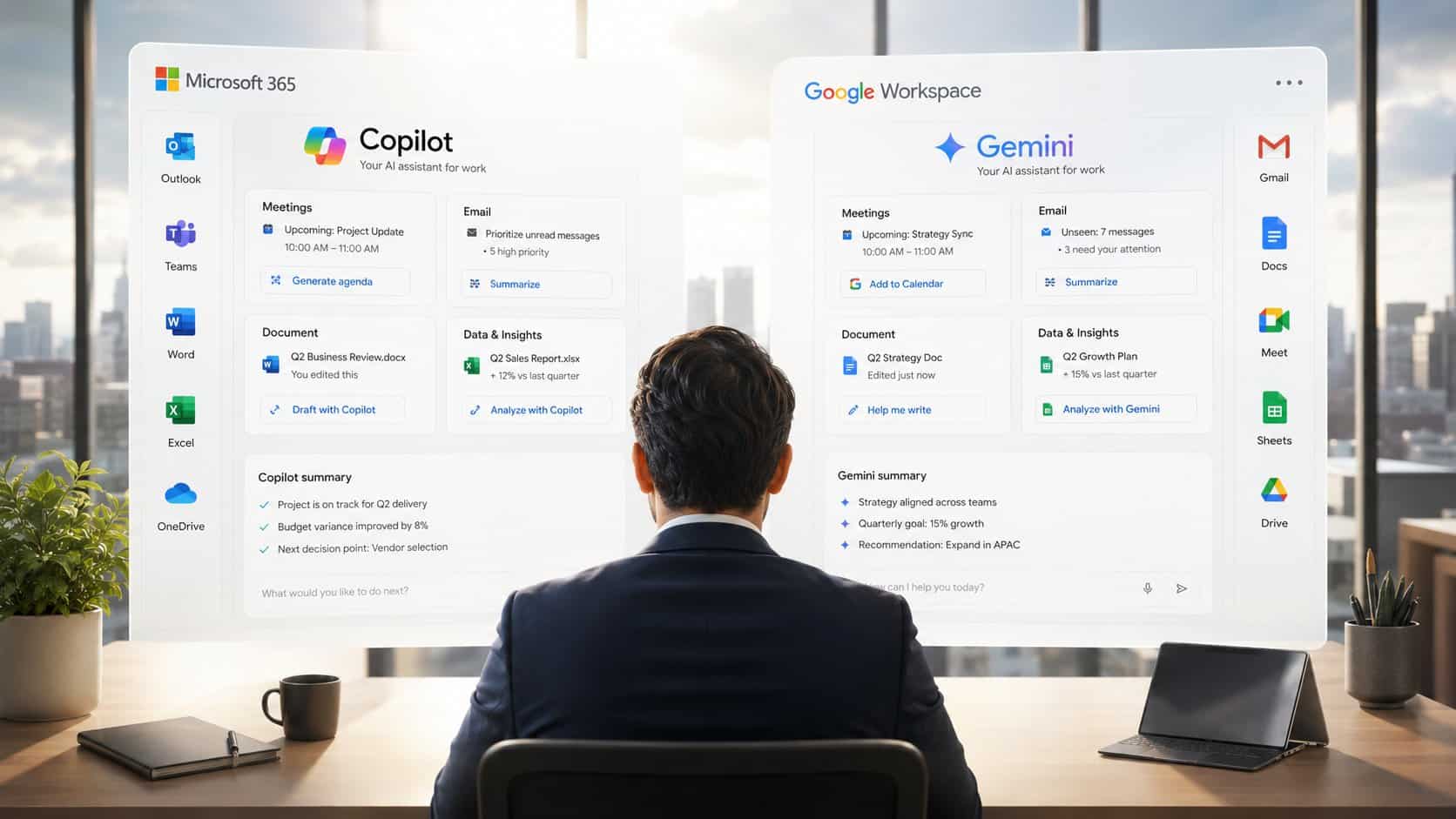
Every Copilot vs Gemini comparison performs the same little theater: two columns, a dozen rows, a suspenseful verdict. Here’s the ending in advance. If your company runs Microsoft 365, you’re getting Copilot. If it runs Google Workspace, you’re getting Gemini. The suite picked the winner before you opened this tab, and the procurement, security review, and admin setup that came with your company’s stack settled the match years ago.
Which is exactly why the useful version of this comparison looks different. Once you accept that the choice was structural, two better questions take over. First, what is your assigned assistant actually good at, so you stop judging it against demos of the other one? Copilot’s strength is workflow automation woven through Outlook, Teams, Word, and Excel with your company’s files and meetings as context. Gemini’s is native drafting and recap help living inside Gmail, Docs, Sheets, and Meet. Same category, different centers of gravity, and knowing yours changes what you ask it to do.
And second, how do you make the thing earn its keep? Most rollouts stall because managers poke at the assistant for a week, get one mediocre draft, and quietly go back to doing everything by hand. So the back half of this piece is a 30-day plan for turning whichever assistant you were dealt into a habit that actually saves time, plus the prompts to start with. The suite picked your tool. What it does for you is still up for grabs.
Key Takeaways
- With Copilot vs Gemini, the suite usually picks the winner: if your company runs Microsoft 365 you get Copilot, if it runs Google Workspace you get Gemini, and switching stacks for an assistant almost never pays off.
- Only a small group genuinely chooses: solo managers, tiny teams, and anyone not locked into one ecosystem. Everyone else should stop comparing and start using what they were assigned.
- The real costs are the ones that skip the invoice: rollout time, training, and the productivity dip while people learn, so budget for adoption, not just seat licenses.
- Draw a clear line your data should not cross, and confirm what your IT agreement actually covers before you paste sensitive personnel or financial details into either assistant.
- Run a simple 30-day plan to make your assigned assistant earn its keep: drafting and cleanup first, then one recurring meeting, then real management work, then standardize what worked.
Table of Contents
Why the Choice Was Never Really Yours
The reason this comparison feels predetermined is that the interesting decisions happened years before anyone typed a prompt. When your company picked Microsoft 365 or Google Workspace, it also picked a security model, an admin console, a procurement relationship, and a set of habits across every team. An AI assistant that lives inside that suite inherits all of it on day one. An assistant from the other ecosystem would need its own security review, its own licensing negotiation, and its own adoption push, all to deliver roughly the same category of help. IT departments don’t take that meeting.
There’s a maturity story underneath too. Copilot got to market first, growing out of Microsoft’s early AI push into general availability back in 2023, while Gemini arrived later as Google’s unified Workspace AI layer, a history TechTarget’s comparison walks through. The practical meaning for you: Copilot has had longer to settle into enterprise workflows, and Gemini has the tighter, more unified fit inside its own suite. Neither fact should change your company’s choice, because your company already made it.
The table, honestly labeled
| Dimension | Microsoft 365 Copilot | Google Gemini |
|---|---|---|
| Native home | Word, Outlook, Teams, Excel | Gmail, Docs, Sheets, Meet |
| Context source | Your company’s mail, files, and meetings via Microsoft Graph | Workspace-side grounding across Google apps |
| Manager sweet spot | Thread triage, Teams recaps, workbook pulls | Doc drafting, Gmail triage, Meet recaps |
| How it arrives | Org add-on or bundled SKU | Included in most Workspace business tiers |
| Verdict | Wins in Microsoft shops | Wins in Google shops |
Read the bottom row first and the rest becomes detail. The one row with real information for a manager is how it arrives, and it gets its own section below, because the two companies package these very differently and it affects whether you personally need to do anything.
The small group that genuinely chooses
A minority of managers do face a live decision: hybrid companies mid-migration, cross-functional teams straddling both suites, or a pilot where IT is still picking its ecosystem. If that’s you, the tiebreaker shouldn’t be benchmarks. It’s where your specific team’s meetings, documents, and decisions already live, plus which external tools matter enough to need integration. And if your real question is whether the suite assistant beats a standalone one, that’s a different comparison with different answers: ChatGPT vs Copilot covers the Microsoft side of that question and ChatGPT vs Gemini the Google side.

Two Manager Weeks, Side by Side
The cleanest way to see what each assistant is for is to watch the same week happen in two companies.
Maria’s Microsoft week
Maria opens Monday to an overloaded Outlook inbox, a 1-on-1 prep doc in Word, and a Teams recap she needs before her 2 p.m. staff check-in. Copilot’s advantage in that week is context: it can draw on her mail, files, and meetings through Microsoft Graph, which is what turns it from a chatbot into actual workflow support inside the suite. She moves from thread to summary to draft without reassembling context by hand: talking points pulled from the thread, the feedback email shaped in place, the recap turned into follow-up bullets with owners.
Her afternoon is an Excel status workbook from finance, and Copilot’s ability to pull the relevant numbers into a plain-English update is the unglamorous win that eats less of her day. None of this is demo material, and that’s the point; the Copilot guide for managers is built around exactly this kind of week. Come review season, the same context advantage compounds, since scattered comments in Outlook and Teams are what reviews actually start from, and the Copilot for performance reviews workflow covers gathering that evidence in place.
Devon’s Google week
Devon runs the same week in a Workspace company. Prep lives in Docs, the inbox is Gmail, the recap comes from Meet, and Gemini’s value is that all three stay adjacent: he drafts the recap where the meeting happened, tightens the weekly update in the doc where it lives, and clears the comment threads without changing tabs. Gemini’s rhythm suits work that’s already in the browser, collaborative, and comment-heavy, which describes most Google-shop management. The Gemini review walks the day-to-day feel in full.
Neither manager works harder than the other. Each one works inside the suite their company already privileges, and the assistant that can stay closest to the meeting, the doc, and the follow-up thread without forcing a context rebuild is the one that gets used past week two. That’s the entire comparison, lived rather than tabulated.
What Each One Costs, and What IT Already Decided
Here’s the one row from the table that deserves real attention, because the two companies package these assistants differently, and the difference determines whether you personally need to do anything.
The packaging asymmetry
Google folded Gemini’s work features into Workspace Business Standard and above back in early 2025, no add-on required. If your company is on one of those tiers, Gemini is already in the per-seat price, switched on or a policy toggle away. Microsoft’s model has been the opposite: full Microsoft 365 Copilot runs roughly $30 per seat per month on top of the base license, a real line item someone had to approve.
That gap narrowed this July when Microsoft added bundled small-business SKUs and a free Copilot Chat tier for every Microsoft 365 user, but the core asymmetry survives, and packaging comparisons of the two keep landing on the same read: Gemini tends to arrive included, Copilot tends to arrive as a purchase.
For a manager the practical translation is one question per suite. Google shop: check whether Gemini is already on, because you may be sitting on paid-for capability nobody announced. Microsoft shop: check which Copilot you have, because “we have Copilot” often means the free Chat tier rather than the full embedded seats, and the two are very different tools.
The costs that never hit the invoice
Seat price is the visible number and rarely the important one. Training time, change management, and the quiet weeks where nobody uses the thing cost more than the license, which is why budget frameworks for workplace tools start from the workflow rather than the price sheet. A cheap deployment nobody touches is pure waste. A $30 seat that actually absorbs your recap drafting, inbox triage, and review prep pays for itself in the first week of the month. The 30-day plan below exists to force that second outcome.
The line your data shouldn’t cross
Both assistants sit inside enterprise security boundaries when deployed on business tiers, and both still deserve the same manager-level rule. Everyday drafting and recaps of ordinary team material: low risk, proceed. Anything touching compensation, promotion, discipline, hiring, or legal exposure: pause, and confirm what your company’s policy actually permits, because enterprise AI security guidance lands on the same principle every time: access rules and data classification matter more than the shiny output. The everyday test: if the document would make HR or Legal uncomfortable sitting in a shared drive, it should make you cautious in an assistant too, sanctioned or not.

The 30-Day Plan: Make Your Assigned Assistant Earn Its Keep
Whichever tool the suite dealt you, the difference between “we have AI” and “AI saves me three hours a week” is a month of deliberate, boring practice. Here’s the shape of it.
Week 1: Drafting and cleanup only
Start with zero-risk work. Have the assistant rewrite an existing email, summarize a long doc, sharpen a meeting agenda you already wrote. You’re not chasing wins yet; you’re learning where the tool sounds confident but misses context, which every assistant does somewhere. One inbox, one doc set, nothing that touches people.
Week 2: One recurring meeting
Put it on a single recurring meeting and audit the recap hard: names, action items, priorities, what it got wrong. This week answers the only question that matters early, which is whether the assistant is saving time or generating correction work. If corrections outweigh savings, tighten what you feed it before you widen what you ask of it.
Week 3: Real management work
Now hand it something that touches people: a 1-on-1 prep, a weekly update, a feedback email. Judge it on whether the draft respects the person and the situation, not on polish. This is also the week to set expectations with your team about how you’re using the thing, because unspoken AI habits are how trust erodes; the AI training for employees guide covers making those norms legible without a compliance lecture.
Week 4: Standardize the wins, drop the rest
Keep only what repeatedly worked. For most managers that lands on two or three workflows, typically recap drafts, 1-on-1 prep, and status updates. Make those the default, ignore everything else, and stop feeling obligated to use AI for tasks it handled worse than you do. A tool that owns three real workflows beats a tool sprinkled over twenty.
Four prompts to start the month
The wording below works in either Copilot or Gemini with minor tweaks; point each at the relevant doc, thread, or meeting.
1-on-1 prep:
Draft a 1:1 agenda for [employee name] based on these notes. Focus on priorities, blockers, feedback, and next steps. Keep it concise and manager-friendly.Feedback email:
Rewrite this feedback note into a clear, respectful email. Keep the tone direct, specific, and supportive. Do not add fluff.Weekly status:
Turn these notes into a weekly status update for leadership. Use short sections for progress, risks, decisions needed, and next actions.Meeting recap:
Summarize this meeting into a recap with decisions, open questions, and action items. Highlight owners and deadlines if they appear in the notes.The finish line isn’t more prompts. It’s a repeatable habit inside the suite your company already pays for. The suite picked your tool. A month from now, whether it earned its keep is entirely on how you ran these four weeks.
Frequently Asked Questions
Is Copilot or Gemini better for managers?
Inside its own suite, each one wins. Copilot is stronger for Microsoft-shop work: Outlook triage, Teams recaps, and Excel pulls with your company’s files as context. Gemini is stronger for Google-shop work: Gmail drafting, Docs collaboration, and Meet recaps. Cross-suite comparisons mostly don’t matter, because almost nobody gets to deploy the other ecosystem’s assistant.
Can I choose between Copilot and Gemini?
Usually not. Your company’s productivity suite determines which assistant is available, sanctioned, and integrated, and IT rarely approves the rival ecosystem’s tool just for AI. The genuine choosers are hybrid companies, mixed-stack teams, and pilots where the ecosystem decision is still open. For everyone else, the useful move is getting value from the assigned tool rather than relitigating the assignment.
Is Gemini really free if we use Google Workspace?
On most business tiers, effectively yes. Google folded Gemini’s work features into Workspace Business Standard and higher in early 2025, so it’s part of the seat price your company already pays rather than an add-on. Check your plan before anyone buys a personal subscription, because plenty of Google-shop managers are already covered without knowing it.
How do I get real value from the assistant my company picked?
Run a deliberate first month. Week one, drafting and cleanup only. Week two, one recurring meeting with a hard audit of the recaps. Week three, real management work like 1-on-1 prep and feedback drafts. Week four, standardize the two or three workflows that repeatedly saved time and drop the rest. A month of boring practice beats a year of occasional poking.