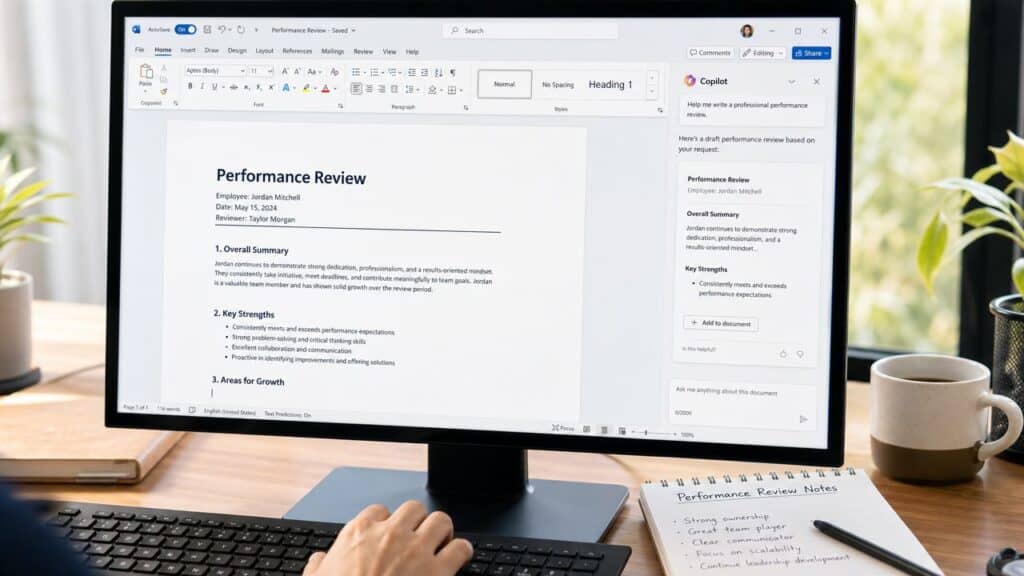
You’re staring at the self-evaluation form, and the first eight months of the cycle are a blur. You remember the recent launch, the difficult staffing conversation, and last week’s escalation. The decision in February that quietly prevented a problem, the coaching that changed someone’s trajectory, the cross-functional work that never got announced: all of that happened, and none of it is going to walk itself into the blank text boxes. It’s sitting in your sent mail, your Teams meeting recaps, and the documents on your OneDrive.
Most people spend three to five hours on self-evaluations, and in a Microsoft 365 shop a surprising share of that time goes to reconstructing a year the company already recorded. Using Copilot for self-evaluations turns the reconstruction into a search. The paid Microsoft 365 Copilot can read your own mailbox, meetings, and files, surface what you did, group it by goal, and point back to the source for each item, which cuts the whole process to about 90 minutes and leaves your time for what needs judgment, the tone, the framing, and the decision about what deserves credit.
Here’s what matters. All managers have managers. Your self-evaluation shapes decisions about compensation, promotion, and your next assignment, and your manager’s manager probably reads it. It’s worth 90 minutes to do it right. This guide walks the whole process, starting with the question that decides whether the workflow works at all: which Copilot you actually have.
Key Takeaways
- Copilot for self-evaluations only works properly on the paid Microsoft 365 tier, which can read your mail, files, chats, and meetings.
- Free Copilot Chat is web-grounded and sees the document you have open, so it cannot search your year for you.
- Check which Copilot you actually have before you start, because the two products share a name and almost nothing else.
- The five core prompts map your year, draft accomplishments, articulate strengths, frame development areas, and set next year’s goals.
- Run the claim audit before anything ships, and keep the evidence list: every significant claim should trace back to a dated source.
Table of Contents
Why Using Copilot for Self-Evaluations Works
The strongest self-evaluations don’t start from memory. Memory overweights recent work, visible launches, and the problems that hurt, and it quietly drops the routine wins that made the team reliable. The problem was never that you don’t know what you did. It’s that the evidence is scattered across a year of messages and meetings, and a blank Word document can’t go get it.
What Copilot does
With a Microsoft 365 Copilot license, the assistant reads the work you already have permission to see: your Outlook mail, Teams chats and meeting recaps, OneDrive and SharePoint files, and your calendar. Microsoft’s own guidance describes the Copilot app’s Recommended section as the place where meeting recaps and relevant files surface alongside suggested searches, which makes it the natural starting point. Ask it what you contributed to this cycle and it can answer from your actual footprint, with the source location attached to each item, rather than waiting for you to paste a year of context. That’s the difference from every other tool in this series. Copilot finds the evidence; the others need you to bring it.
The practice reality
There are three products called Copilot, and only one of them can do this. Free Copilot Chat, which comes with most Microsoft 365 business plans, answers from the web and whatever document you have open; it doesn’t connect to your mail, your files, your Teams conversations, or your calendar. The personal Microsoft 365 Premium plan, around $20 a month, sees only your personal files. The paid Microsoft 365 Copilot seat, about $30 per user on enterprise plans and around $21 on the small-business version, is the one that reads your work data, and the Copilot guide for managers covers the split in detail.
So the honest framing is simple. The evidence-mining workflow in this guide needs the paid seat. If you only have Copilot Chat, you can still use it to draft from evidence you gather by hand, and that’s the ChatGPT method with a different logo, worth reading instead. Either way, Copilot locates and phrases. You still own what the evidence means, whether a miss needs candid treatment, and which claims you’d defend in a calibration meeting.
Before You Start: 20-Minute Prep
The prep for this workflow starts with a license check, because no prompt can make a tool read content it can’t access. Then it fills the one gap the search will always leave.

Check which Copilot you have
Open the Microsoft 365 Copilot app and run one narrow request that depends on your own work content. Something like: find recent meeting recaps and files related to the [project name] launch, and list the decisions and follow-up items connected to my contributions. If the answer comes back with real recaps and file names, you have the seat and the workflow ahead will work. If it offers generic advice or asks you to paste the material, you’re on Copilot Chat or your organization hasn’t turned on the connections, and the people who set these things up lean on configuration guides like this one before confirming access with the admin.
Your year, outside the suite
Copilot finds what left a digital trail in Microsoft 365. It won’t find the coaching conversation that happened in a hallway, the customer trust you rebuilt on a phone call, the incident you steadied at 2 a.m., or the work you did in tools outside the suite. Spend ten minutes writing those down as short dated bullets, because a search that only surfaces documented work will make your visible projects look like your whole year.
Honest development areas
Where do you want to grow? What challenges did you hit? Everyone has development areas, and naming yours shows self-awareness. The feedback is probably in your mail and recaps already, and the search in Prompt 3 will find it, but decide now which growth areas you’re willing to own so the search confirms rather than surprises.
Context that matters
Team changes, shifting priorities, inherited problems, resource constraints. If they exist in a Teams post or a status update, the search can find them. If they don’t, add them to your bullets, because they’re essential to a fair evaluation and Copilot can’t infer them.
Your manager’s feedback
Search your 1-on-1 recaps and mail for what your manager flagged as strengths and where they asked for growth. A self-evaluation that reflects feedback you already received shows you listened, and in a Microsoft 365 shop that feedback is unusually easy to find.
What to leave out
Copilot searches what your permissions allow, which means shared HR content, compensation threads, and other people’s personnel matters may be within reach. Keep every prompt scoped to your own work, and follow your company’s rules about AI tools before anything sensitive goes near a draft. Then you’re ready.
The Prompts: Copy, Customize, Use
Five prompts, in order, plus two bonuses, run in the Microsoft 365 Copilot app with your work data connected. Replace the bracketed parts with your real details, keep the source locations Copilot returns, and treat every output as a draft to edit rather than a sentence to ship.
Prompt 1: Map your year
Start with retrieval, not prose. This is the query only the paid Copilot can run, and it’s why the tool earns its place in this series.
Copy this:
Review my Outlook mail, Teams meeting recaps, OneDrive files, and SharePoint documents from [start date] to [end date]. Surface the work I contributed to, grouped by my goals for this cycle: [list your goals]. For every item, give the date, the project, what I did, the outcome described in the source, and where you found it. Don't infer outcomes that aren't stated. Don't write review prose yet.Example output, one item: “Onboarding handoff redesign (May). You coordinated the new handoff between product, support, and engineering; the May 14 launch-channel recap records the rollout, and your June 3 status email to Dana notes faster time-to-first-value for new customers. Sources: Teams recap May 14, Outlook June 3.”
Why start here. You’re too close to see your own patterns, and a year of mail hides them completely. The map with sources is the evidence list every later prompt works from. If it comes back thin, treat that as a search problem before a work problem: rerun it with project names, customer names, recurring meeting titles, and the goal language from your review form, because Copilot finds what it can name.
Prompt 2: Draft your accomplishments
Work section by section, starting with the biggest wins. This is the most important part of any self-evaluation.
Copy this:
Using the strongest items from my year map, draft the accomplishments section of my self-evaluation. For each one, state what I did, my specific contribution, and the result. If the source doesn't state a result, write “result not documented” instead of inferring one. Use numbers only where a source contains them, and mark shared work as shared. First person, confident but not inflated, with the source kept next to each item.Example output: “I redesigned the onboarding handoff between product, support, and engineering, coordinating the change across all three teams. New customers reached first value faster after the rollout, as my June status update recorded; the exact figure lives in the product dashboard and needs confirming before this goes in the final version.”
Then you adjust it. Does that sound like you? Edit until it does, and notice the two honesty moves in the example. The number that isn’t in a source gets flagged rather than rounded up, and “result not documented” is a placeholder for you to fill or cut, never a sentence to ship. Copilot’s drafts are prone to turning a proposed outcome into a completed one; this prompt is the guardrail.
Prompt 3: Articulate your strengths
Copy this:
Search my mail, Teams messages, and meeting recaps from this cycle for feedback about my work, from my manager, peers, and stakeholders. Separate direct quotes from your interpretation, and include the source for each. Then identify my key strengths based on what shows up repeatedly, and describe each one professionally in first person without overinflating.Why this works. Strengths that appear in eight separate messages are real ones, and in a Microsoft 365 shop the praise is on the record: the thank-you from the account team, the recap where your manager credited the save, the Teams thread where someone said “this is why we keep you around.” Copilot sees the repetition you can’t, and the direct quotes make better evidence than any adjective you’d choose for yourself.
Prompt 4: Frame your development areas
Every employee has growth areas, and acknowledging yours honestly shows self-awareness and commitment to improving.
Copy this:
From the feedback in my recaps and mail, the goals I missed or delayed, and any recurring friction in my projects this cycle, identify two or three development areas. Write each as an accountable statement about a behavior I can change, not a judgment about my personality, and cite the source it comes from. First person, honest, no fake humility and no excuses.Example output: “I want to name an owner and a decision date in every launch handoff. The August retro recap and my own status thread both show a handoff that stalled because nobody was clearly responsible for the next step. I’ve started adding an owner line to every launch note and plan to run the next two launches that way.”
Honest, constructive, and sourced. Notice the shape: the situation, your responsibility, the consequence, and the adjustment. “Communication could improve” is empty; a handoff that lacked an owner, and what you’re doing about it, gives your manager something they can support.
Prompt 5: Set next year’s goals
Your goals show you’re thinking ahead, and they set expectations with your manager about what you need from them.
Copy this:
Based on my role, the project patterns in my year map, and these development areas, draft three or four goals for next year. Make them specific and measurable where my sources support a number, and where they don't, propose a clear success condition and label it for my review. Realistic but ambitious, aligned with both my growth and the team's needs. First person.Why this matters. Vague goals help nobody. “Run the next two launches with a named owner and decision date on every handoff” gives your manager something concrete to support and hold you to, and it traces straight back to the development area above.
Bonus prompt: The voice pass
Copilot’s drafts trend corporate. Left alone they produce “drove strategic alignment,” “leveraged cross-functional synergies,” and “demonstrated a commitment to excellence,” which sound polished while saying nothing a manager can picture. Run this on the full draft, after the facts are settled.
Copy this:
Rewrite this draft in a direct, conversational professional voice. Keep every fact, date, project name, and the level of ownership unchanged. Remove inflated adjectives, vague corporate language, and any claim about impact that isn't supported by a source. Keep first-person ownership where the review form expects it.Then read it aloud. Would your coworkers believe you wrote it? A sentence you’d never say out loud doesn’t belong in the document.
Bonus prompt: Draft to the actual form
Review forms have sections and character limits, and a draft that ignores them creates an hour of reformatting.
Copy this:
Draft the “[section name]” section of my review form from my verified evidence, within [character limit] characters. Group contributions by the company's stated goals, use specific actions and documented outcomes, keep the tone candid and concise, and leave a placeholder anywhere a fact is missing or a decision is mine to make.Use it once per form section. The placeholders are the point: every one is a spot where the tool stopped and you have to decide.
Making It Work: The Details Matter
Having the prompts is half the battle. Using them well is the other half.

- Customize every prompt. Bracketed placeholders get your real date range, goals, and project names, because the search is only as precise as the vocabulary you give it.
- Search again when results are thin. Add a customer name, a product term, your manager’s name, or a recurring meeting title. A weak first answer usually means the wrong words, not a missing year.
- Run the claim audit before anything ships. For every significant sentence, open the source and check five things: did you lead it, contribute to it, or attend it; was it completed, proposed, or handed off; does the source show the outcome or does the draft only imply it; does the wording describe one project or overstate a pattern; and does the material belong to this cycle. Copilot can merge two related events or turn participation into ownership, and the fluent surface is exactly what makes those errors easy to miss.
- Don’t confuse documentation with impact. A rich digital trail makes visible work look like all the work. The bullets you wrote in prep, the hallway coaching and the phone-call saves, go into the draft by hand, and the same warning applies when your manager reads it, which is why governance guidance on AI in people decisions keeps returning to human verification.
- Read everything aloud. Does it sound like you? Would your coworkers believe you wrote it?
- Keep the evidence list. The source references and your major edits are what let you answer “where did that come from?” in a calibration conversation, and they’re what you’ll need if you ever disagree with the review that follows.
- Spend as long personalizing as generating. Generic AI language is obvious to anyone who reads dozens of these. The value is a draft built from your real year that you then make unmistakably yours.
Beyond Copilot
Copilot is the right tool when your year lives in Microsoft 365 and you hold the paid seat. It isn’t the only one.
ChatGPT, linked above, is the fit when the problem is phrasing rather than retrieval, or when you only have Copilot Chat; the five self-evaluation prompts get a known list of wins into confident language in an afternoon. Claude is the pick when the material is too big for a normal conversation and needs to go in all at once. Notion AI runs the same mining method for people who documented the year in Notion, and Google Gemini runs it inside Google Workspace, with its own guide in this series.
Quick reference. Your year lives in Microsoft 365 and you have the seat, Copilot. You have only Copilot Chat, ChatGPT with hand-gathered evidence. Too much material, Claude. Your year lives in Notion or Google, that workspace’s assistant. And if you also write reviews for your own team, the manager-side version of this workflow is Copilot for performance reviews.
Bottom Line
If your company runs Microsoft 365 and you hold a Copilot seat, the self-evaluation was never a blank-page problem. It’s a retrieval problem, and Copilot solves that part well. What you get: a source-linked map of what the year actually contained, the wins you’d forgotten, the feedback people already gave you in writing, and drafts that start from evidence. What you still need: the work that left no digital trail, a claim audit against every source, the voice pass that strips the corporate language, and your own judgment about what the record means.
The difference is where the 90 minutes go. Ten checking your license and writing down the offline work, twenty letting Copilot map the year, sixty editing drafts built from what actually happened. Your manager’s manager reads this document. Build it from your own mailbox, and it will hold up.
Frequently Asked Questions
Which Copilot do I need for this?
The paid Microsoft 365 Copilot seat, about $30 per user on enterprise plans and around $21 on the small-business version. It’s the only version that reads your work mail, files, Teams content, and meetings. Free Copilot Chat answers from the web and the document you have open, and the personal Microsoft 365 Premium plan sees only your personal files, so neither can mine your work year.
Can free Copilot Chat search my email and Teams?
No. Copilot Chat is grounded in web data and whatever document is open in front of it, with no connection to your mailbox, files, Teams conversations, or calendar. It can still draft and rewrite from evidence you paste in, which makes it a fine tool for the hand-gathered workflow in the ChatGPT guide, but the search-your-own-year method in this article needs the paid seat.
Is it safe to use Copilot on my performance material?
Microsoft 365 Copilot works inside your company’s tenant and only reads content you already have permission to see, which is safer than pasting work material into a personal chatbot. It still isn’t a policy. Keep prompts scoped to your own work, leave compensation and other people’s personnel matters alone, and follow whatever rules your company has set for AI tools before drafting anything sensitive.
Should I tell my manager I used Copilot?
Using it to recall and phrase is no different from using search and a spellchecker, and most managers won’t care as long as the claims hold up. What matters is that every significant statement traces to a real source you can show. If your company has a disclosure norm for AI-assisted writing, follow it; if it doesn’t, the source-backed evidence list is the thing that protects you either way.